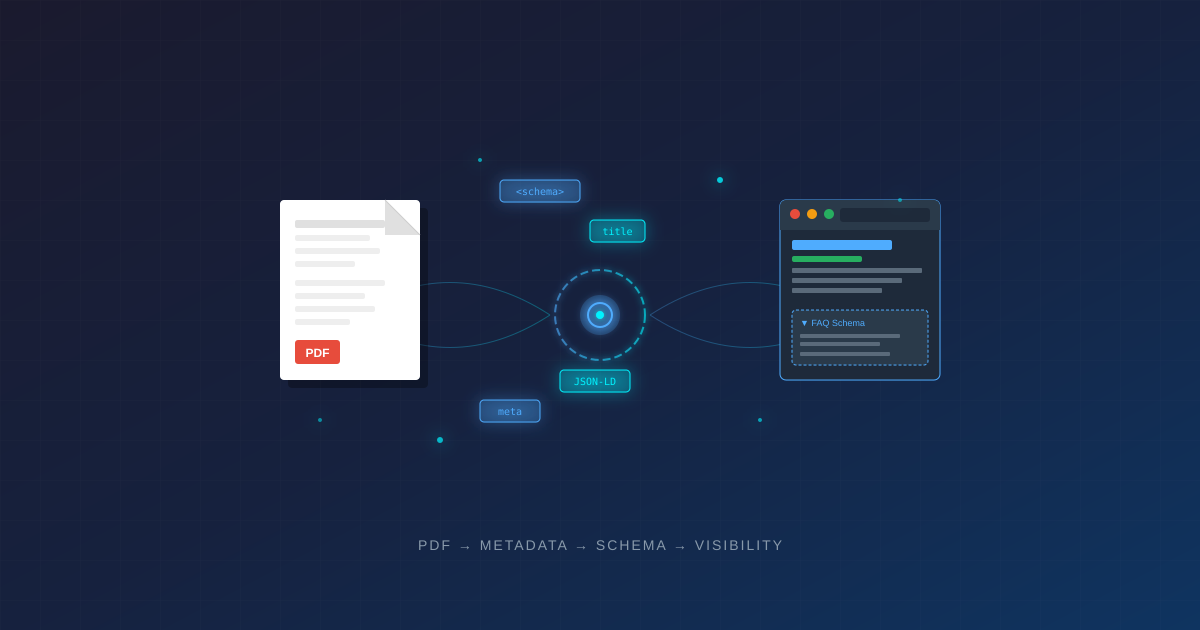
What to do when your content lives outside of HTML
Here’s a scenario that comes up more often than you’d think: you’ve done the SEO work, identified target keywords, planned your schema markup—and then you find out the content is going to be a PDF. Or a PowerPoint. Or an infographic.
Suddenly, half your optimization toolkit doesn’t apply. No JSON-LD schema. No meta descriptions in the traditional sense. No easy content updates.
Does that mean you’re out of luck? Not at all. It just means the strategy shifts.
This guide covers how to optimize PDFs (and by extension, other non-HTML assets) for traditional search, AI-powered search engines, and answer engines. The principles apply whether you’re publishing whitepapers, research reports, product guides, or compliance documents.
The Reality: What PDFs Can and Can’t Do
Let’s start with the honest truth about PDF limitations in 2024’s search landscape:
| Capability | HTML | |
| JSON-LD Schema Markup | ✓ Full support | ✗ Not possible |
| FAQ Rich Results | ✓ Eligible | ✗ Not eligible |
| Featured Snippets | ✓ Highly eligible | △ Rarely selected |
| AI Citation (GEO) | ✓ Optimal | △ Lower priority |
| Content Updates | ✓ Easy | △ Re-upload required |
| Mobile Experience | ✓ Responsive | ✗ Often poor |
That’s the bad news. The good news? There’s a proven strategy that works around these limitations.
PDF Metadata: Your Hidden Optimization Layer
Most people don’t realize that PDFs have metadata fields that search engines actually read and index. In Adobe Acrobat, go to File → Properties (Ctrl+D on Windows, Cmd+D on Mac) to access them.
| Field | Limit | How Search Engines Use It |
| Title | ~255 chars | Displays in search results and browser tabs. This is your equivalent of a title tag. |
| Author | ~255 chars | Brand attribution. Use your organization name for E-E-A-T signals. |
| Subject | ~255 chars | Functions like a meta description. Write compelling copy here. |
| Keywords | ~255 chars | Comma-separated terms. Lower weight than the HTML equivalent, but still indexed. |
Pro tip: You can also access advanced XMP metadata via File → Properties → Additional Metadata in Acrobat Pro. This gives you fields for copyright information, description, and more.
Writing Effective PDF Metadata
Apply the same principles you’d use for HTML meta tags:
- Title: Front-load your primary keyword. Keep it under 60 characters for full display in search results.
- Subject: Write a compelling description that includes your target keyword and a clear value proposition. Think of it as ad copy.
- Keywords: Include your primary keyword, 2-3 secondary keywords, and relevant entities. Don’t stuff—keep it natural.
- Author: Use your brand name consistently across all documents for entity recognition.
The Landing Page Strategy: Where Schema Lives
Since PDFs can’t contain structured data, you need to create HTML landing pages that serve as the schema-carrying wrapper for your PDF content. This is actually Google’s recommended approach—but there’s a more elegant implementation than simply linking to a downloadable file.
The key insight: You can embed the PDF directly into your landing page using <iframe>, <embed>, or <object> tags. This gives you full schema support and keeps users on your page while viewing the content. Here are three methods:
<!-- iframe method (most widely supported) -->
<iframe src="https://249bcc28.delivery.rocketcdn.me/documents/your-file.pdf" width="100%" height="600px"></iframe>

<!-- embed method -->
<embed src="https://249bcc28.delivery.rocketcdn.me/documents/your-file.pdf" type="application/pdf" width="100%" height="600px">

<!-- object method (with fallback) -->
<object data="https://249bcc28.delivery.rocketcdn.me/documents/your-file.pdf" type="application/pdf" width="100%" height="600px">
  <p>Your browser doesn't support embedded PDFs. <a href="https://249bcc28.delivery.rocketcdn.me/documents/your-file.pdf">Download the PDF</a>.</p>
</object>
Each PDF should have a dedicated landing page that includes:
- Optimized HTML elements — Title tag, meta description, H1, and proper heading hierarchy
- Summary content — 100-300 words describing what’s in the PDF, written for both humans and AI extraction
- Full JSON-LD schema markup — Article, FAQPage, HowTo, or whatever schema type fits your content
- Embedded PDF viewer — Using iframe, embed, or object tags so users can view without downloading
- Download CTA as backup — For users who prefer to save the file locally
- Key takeaways or FAQ section — Extract the most important points for on-page visibility
This approach gives you the best of all worlds: the PDF content is viewable without leaving your site, your landing page captures search visibility and AI citations through proper schema, and you maintain full control over the user experience.
Don’t Overlook Filename Optimization
PDF filenames appear in search results and affect how search engines understand your content. Yet most organizations use internal naming conventions that mean nothing to Google.
Instead of: DOC_2024_Q3_FINAL_v2_approved.pdf
Use: quarterly-market-analysis-report-q3-2024.pdf
Filename best practices:
- Use hyphens to separate words (not underscores or spaces)
- Include your primary keyword
- Keep it descriptive but concise
- Use lowercase letters only
- Avoid version numbers and internal codes
Inside the PDF: Structure Still Matters
Even without schema support, how you structure the PDF itself affects both crawlability and the quality of AI extraction. Search engines and AI models can parse PDF content—but they do it better when the PDF is properly structured.
| Element | Why It Matters |
| Tagged Headings | Use actual H1/H2/H3 styles in your source document (Word, InDesign, etc.)—not just bold text. This creates a tagged structure that search engines and AI can parse hierarchically. |
| Alt Text | Add descriptive alt text to images via Acrobat’s Accessibility panel. AI systems use this to understand visual content. |
| Reading Order | Ensure content flows logically. Poor reading order confuses both screen readers and content extraction algorithms. |
| Selectable Text | Never publish scanned images as PDFs. Text must be actual text, not pictures of text. If you have scanned documents, run OCR first. |
| Hyperlinks | Embed full URLs (not “click here”). Include links to related content on your site to support internal linking. |
GEO Considerations: Getting Cited by AI
AI-powered search engines (Google AI Overviews, ChatGPT with browsing, Perplexity, etc.) can read PDFs—but they prioritize HTML content for citations. Here’s how to improve your chances of AI visibility with PDF content:
- Lead with facts. Start sections with clear, declarative statements that AI can excerpt. “The average response time is 4.2 seconds” is more citable than “Response times vary depending on several factors.”
- Use question-based headings. “What are the requirements for certification?” is more likely to match an AI query than “Certification Requirements Overview.”
- Include specific data. Statistics, dates, measurements, and named entities give AI systems concrete information to cite.
- Structure for extraction. Bulleted lists, tables, and clear hierarchies help AI parse and summarize content accurately.
- Mirror content on landing pages. The most important information should appear both in the PDF and on the HTML landing page for maximum visibility.
Beyond PDFs: Other Non-HTML Assets
The same principles apply to other file types that can’t contain schema markup:
- PowerPoint/Slides: Optimize the file properties, use descriptive filenames, and create landing pages with embedded previews or key slide content.
- Excel/Spreadsheets: Add worksheet descriptions in file properties. Consider whether the data should also exist as an HTML table for crawling.
- Images/Infographics: Optimize filename and alt text. Create supporting HTML content that explains the visual with schema markup.
- Videos: Use VideoObject schema on the hosting page. Include transcripts for AI extraction.
- Audio/Podcasts: Provide transcripts as HTML content. Use appropriate podcast schema on episode pages.
Implementation Checklist
Before publishing any PDF, run through this checklist:
PDF File Itself
- Metadata populated (Title, Author, Subject, Keywords)
- Filename is keyword-rich and hyphenated
- Proper heading tags (H1, H2, H3) in document structure
- Alt text on all images
- Reading order verified
- All text is selectable (not scanned images)
Landing Page
- Unique URL created for the PDF resource
- Title tag and meta description optimized
- H1 and supporting content written
- JSON-LD schema implemented (Article, FAQPage, HowTo, etc.)
- PDF embedded using iframe, embed, or object tag
- Key takeaways/FAQ extracted to HTML
- Download link provided as alternative
- Internal links to related content
The Bottom Line
PDFs aren’t ideal for SEO or GEO—but they’re often non-negotiable. Legal documents, compliance materials, detailed reports, and printable resources frequently need to be PDFs.
The solution isn’t to fight the format. It’s to build an optimization layer around it: proper metadata inside the PDF, a schema-rich landing page outside of it, and content structured for both human readers and AI extraction.
Do that, and your PDFs can still earn visibility in traditional search, AI-generated answers, and everywhere in between.